
Custom Lighting
Welcome to SpiderFuser's Custom Lighting Bot Program
SpiderFuser’s Custom Lighting system lets you fully control the game’s atmosphere. Starting from the sky and fog to sunlight, weather details, and environmental effects.
This guide explains how to access Custom Lighting, tweak each option, save presets, and share or import lighting setups.
Entering Custom Lighting
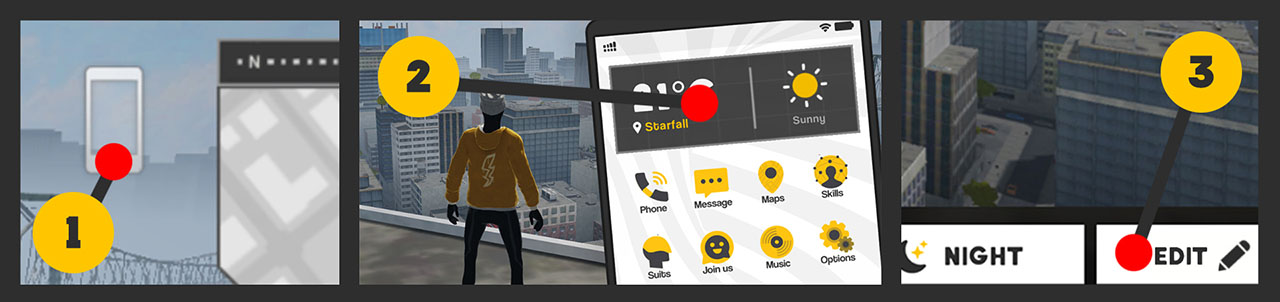
To open the Custom Lighting editor:
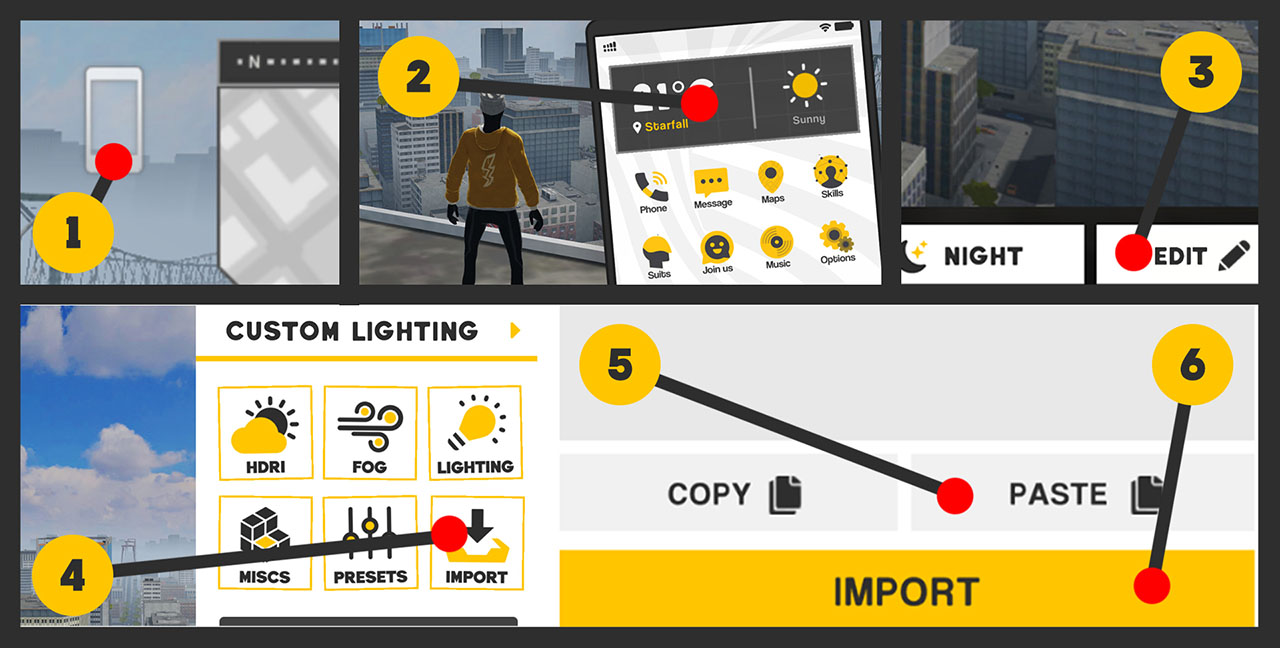
- Tap the in-game phone
- Tap the Weather widget
- Tap Edit
All of these steps are shown below.
Custom Lighting Home
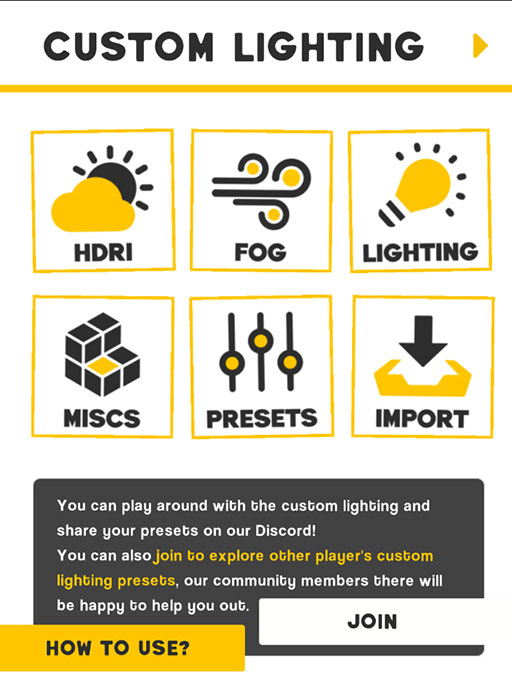
Once inside, you’ll land on the Custom Lighting Home screen.
This page contains the main grid with the following options:
- HDRI
- Fog
- Lighting
- Miscs
- Presets
- Import
HDRI (Skybox)
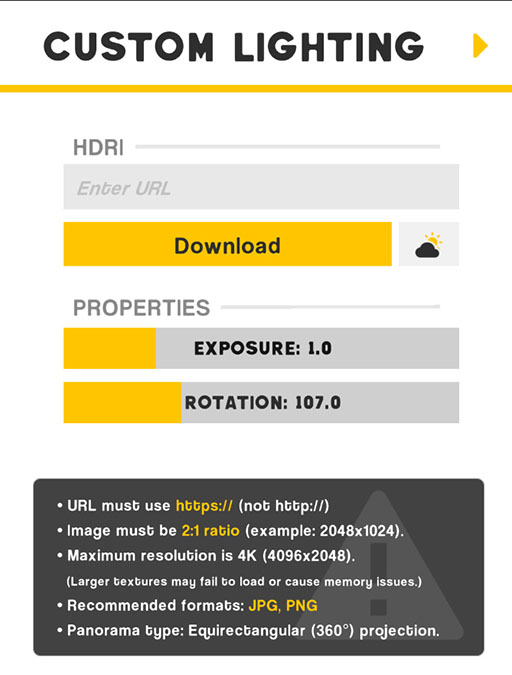
Use HDRI to control the sky’s appearance.
You can:
- Paste an HDRI image URL
- Download and apply it
- Adjust exposure
- Rotate the sky
You can host HDRI images using:
- postimages.org (Recommended)
- Or any other hosting sites of your choice
Paste the image URL and tap Download.
Fog
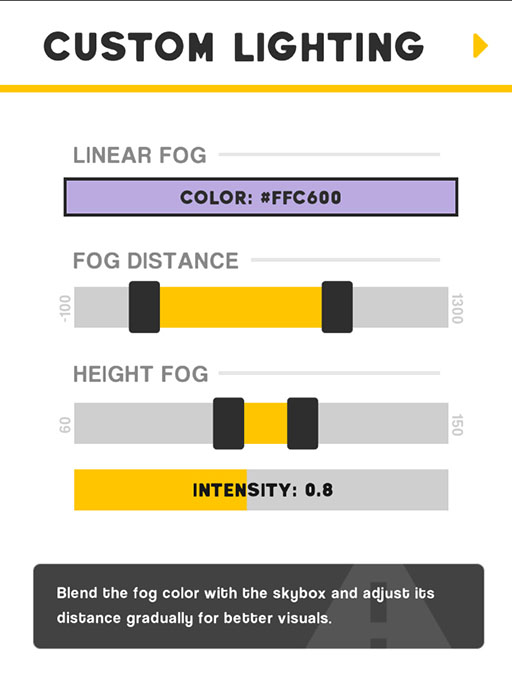
The Fog section lets you control atmospheric depth.
Available options:
- Fog color
- Fog distance
- Fog height
- Fog intensity
💡 Tip:
Match fog color with your skybox color for smoother visuals and better blending.
Lighting (Sun & Ambient)
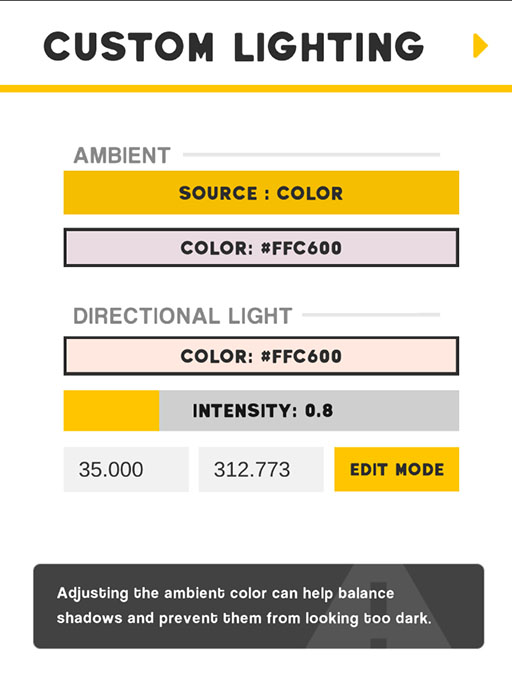
The Lighting section controls sunlight and ambient lighting.
You can adjust:
- Ambient light color
- Directional (sun) light color
- Light intensity
The Edit button allows you to rotate the sun direction.
You can also fine-tune rotation using the Vector2 input fields next to it.
Miscs (Environmental Details)
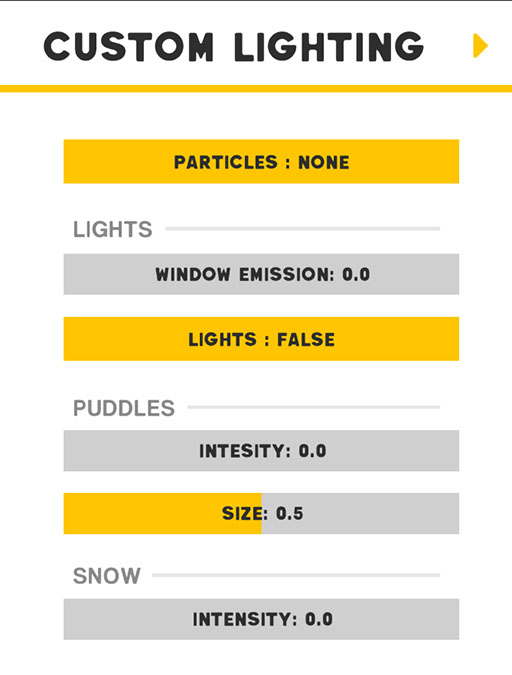
The Miscs section lets you tweak extra world details.
Options include:
- Window emission intensity (lights on/off during night)
- Water puddle size and intensity
- Enable or disable snow particles
- Snow intensity on surfaces
Presets
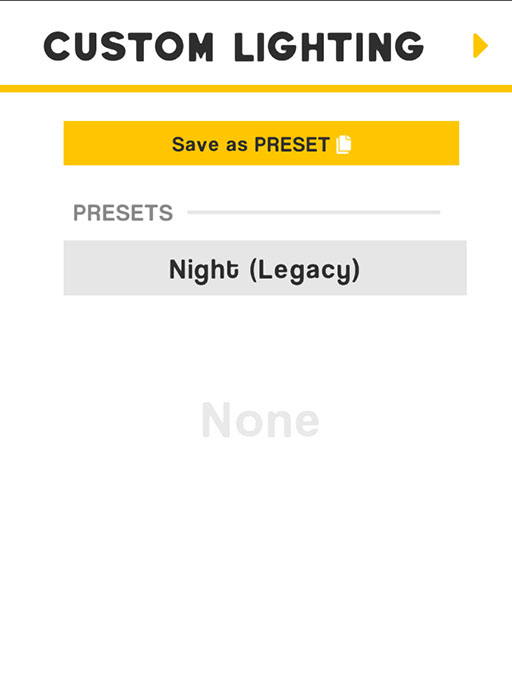
Use Presets to save and quickly reuse lighting setups.
- Save your current configuration
- Load presets instantly anytime
Perfect for switching moods or testing styles.
Import / Export Lighting
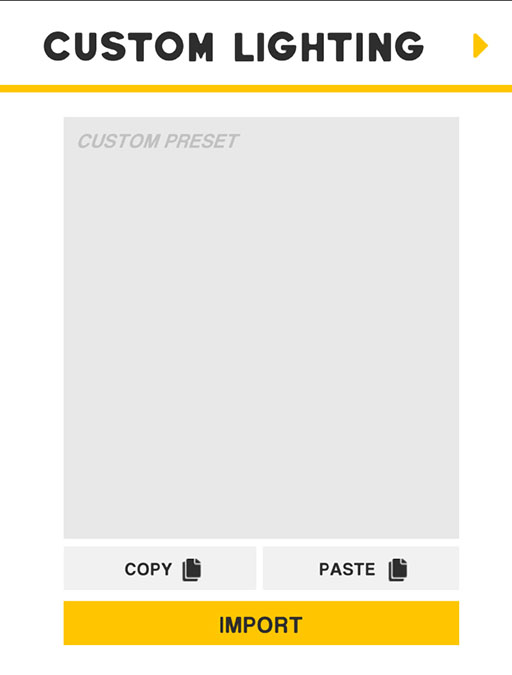
The Import section allows you to copy, share, and load lighting setups.
You’ll find:
- Copy → copies your current configuration
- Paste → paste someone else’s config
- Import → apply the pasted setup
Importing Lighting from Others
To import a shared lighting preset:
- Copy the configuration code
- Open Import
- Paste the code
- Tap Import
All steps are shown here:
Sharing Your Custom Lighting
To share your lighting setup:
- Open Import
- Tap Copy
- Go to the R-USER Games Discord
- Open the
#custom-lightingchannel - Use the following command:
/sharelighting
name: your preset name
code: paste the copied code
description: (optional)
Video Tutorials
If you prefer video guides:
-
Share lighting via Discord Fuser Bot ▶️ Watch: Fuser Bot Guide
-
Import lighting from Discord into SpiderFuser ▶️ Watch: Import Guide
Your city. Your sky. Your vibe.