
Suit Studio
Welcome to the Suit Studio that lets you create and customize your own character suits directly inside SpiderFuser. You paint on a provided base mesh in 3D, save your designs, and share them with the community as a single image.
This page explains how to access Suit Studio, use its tools, and save or import custom suits.
Accessing Suit Studio
You can open Create Your Own Suit (CYOS) in two ways.
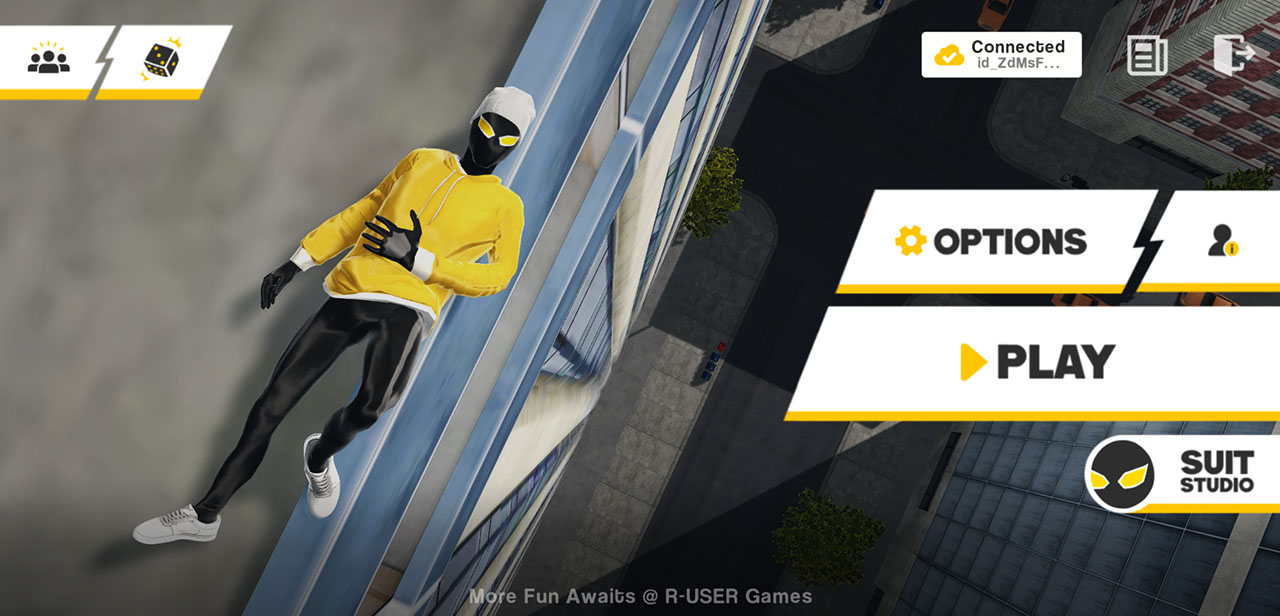
From the Main Menu
From the main menu, you’ll see a new button called Suit Studio.
From In-Game (Play Mode)
While playing:
- Open the in-game phone
- Open the Suits app
- Click Create
And this will directly take you to the CYOS Page
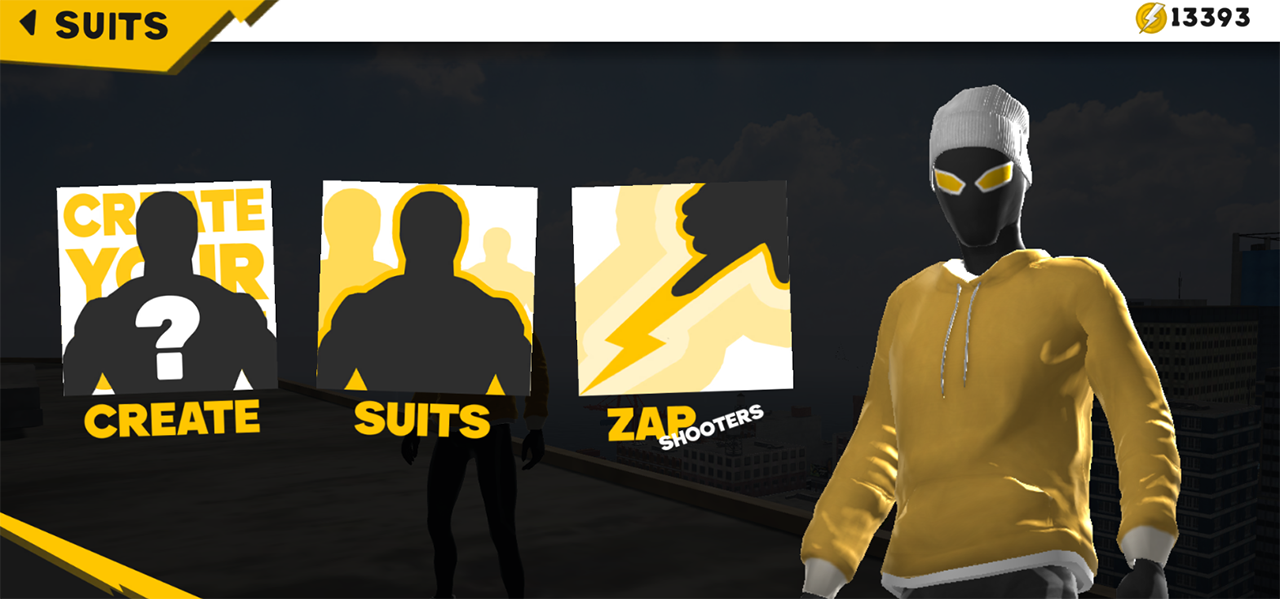
CYOS (Create Your Own Suit)
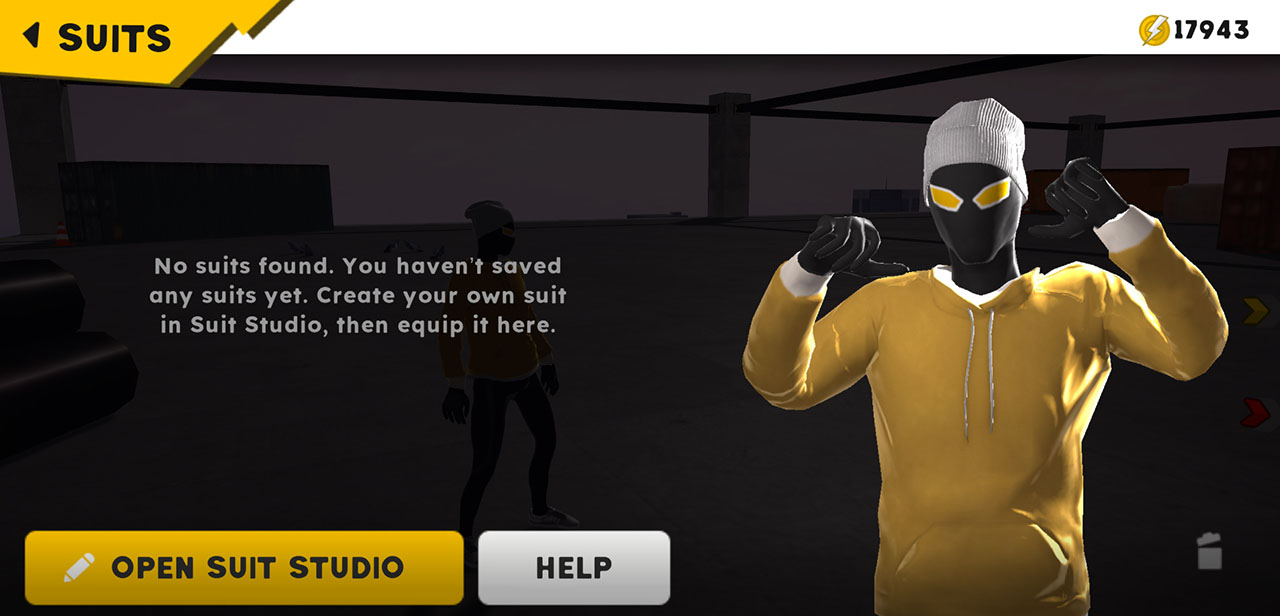
The CYOS page shows:
- All your saved custom suits
- An option to Open Suit Studio if you don’t have any yet
Tap Open Suit Studio to start creating.
Suit Studio Home
Once inside, you’ll see the base suit mesh.
You can:
- Touch + drag → rotate around the model
- Two-finger drag → pan the camera
- Pinch in or out → zoom in and out
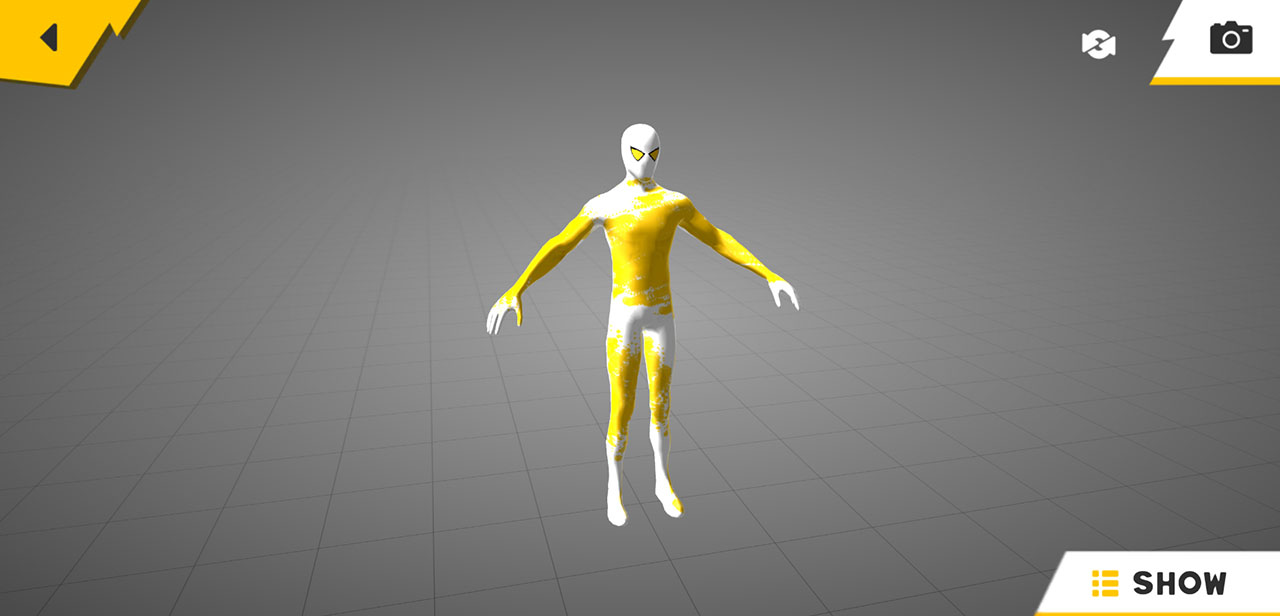
Top-Right Controls
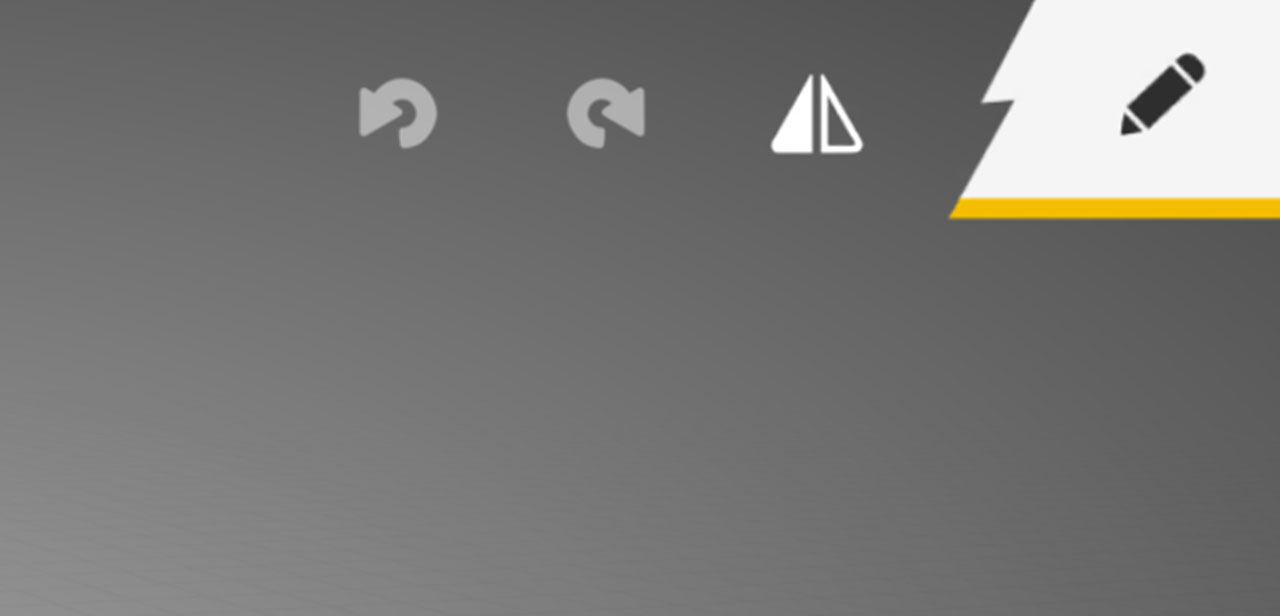
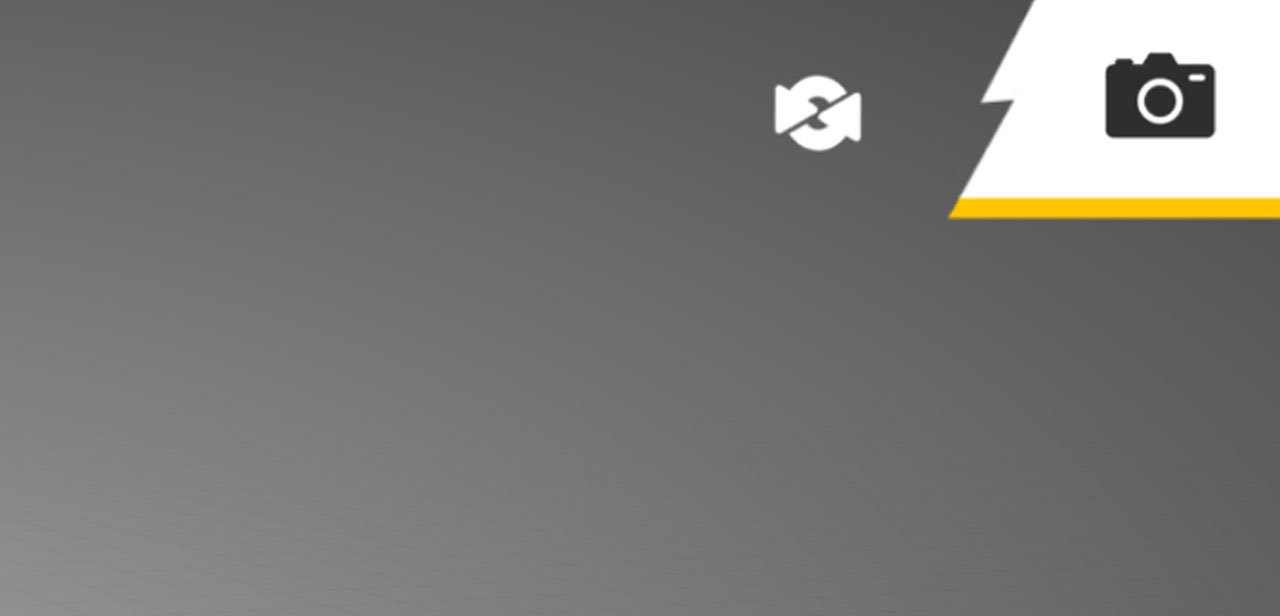
- Reset → resets camera view
- Camera → toggles between view and edit modes
Edit Mode (Painting)
Note: Once you enter Edit Mode, the camera can no longer be rotated, zoomed, or panned.
This is intentional because while painting on the mesh, locking the camera prevents accidental movement that could mess up your strokes.
Tap the Camera button to enter Edit Mode.
In Edit Mode:
- You can paint directly on the suit mesh
- You have the option to undo and redo
- And also you have the option to toggle mirror. So you only paint half and the game does the other half in real-time
- Brush strokes follow the surface in real-time
Panels (Show Button)
At the bottom-right corner, tap Show to open the tool panel.
Each tab opens a different panel.
Brush Panel
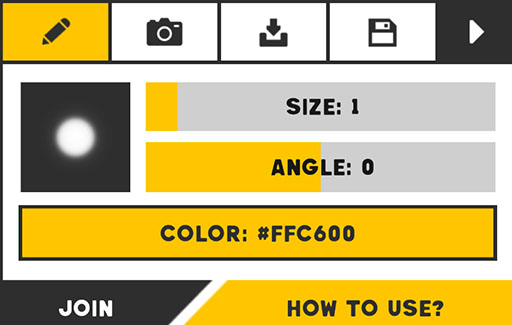
The Brush panel is where painting happens.
You can:
- Select a brush
- Adjust brush size
- Adjust brush angle
- Change color
Selecting & Importing Brushes
Tap the Brush icon to open the brush selector.
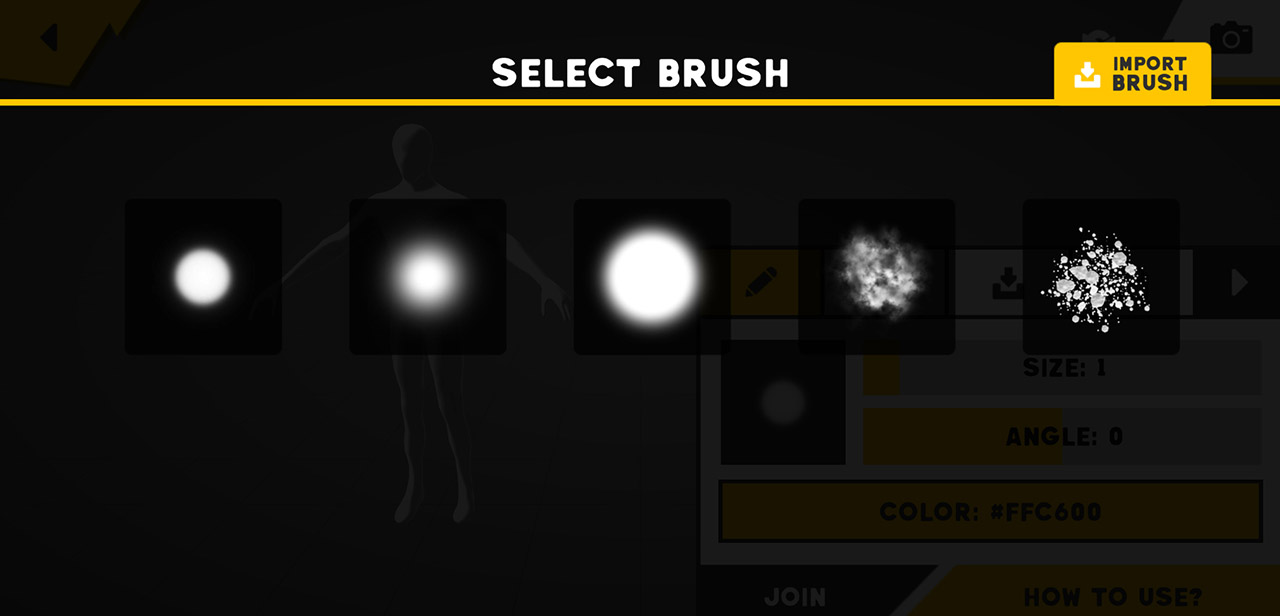
From here:
- You can choose an existing brush
- Tap Import Brush (top-right) to import from local files
- Allow file permissions when prompted
Camera Settings Panel
The Camera Settings panel contains:
- A visual tutorial explaining camera controls
- A camera sensitivity slider
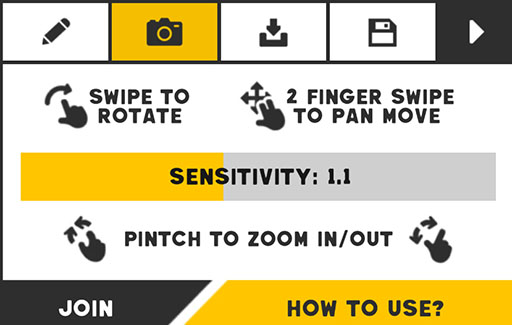
This panel only affects camera movement, not painting.
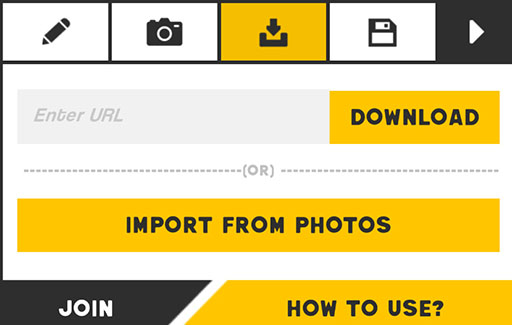
Import Suit Panel
The Import panel lets you load suits made by others.
Suits are exported as a single image, making them easy to share.
You can:
- Paste a suit image link and download it
- Import directly from your gallery/photos
Save And Export Panel
The Save / Export panel handles saving and sharing.
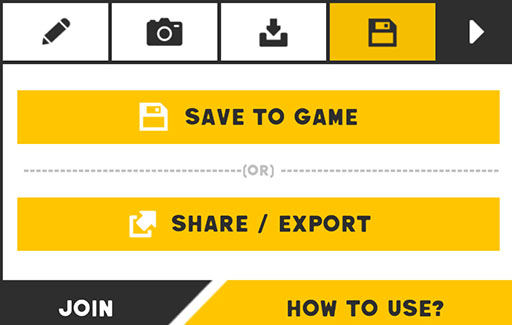
Save to Game
- Opens a dialog asking for a suit name
- After saving, the suit appears on the CYOS page
Share / Export
- Exports the suit as an image
- Saves it to your phone’s local storage
- You choose where to save it
This exported image can be shared and imported by others.
Camera Mode (Preview)
You can switch camera behavior for better viewing and screenshots.
This mode is useful for:
- Previewing your suit
- Rotate the view to paint from a different angle
- Taking clean showcase screenshots
Final Notes
- Suit Studio works only on the provided base mesh
- All suits are saved and shared as images
- Imported suits can be edited further
Paint it. Save it. Share it.
Your suit, your style.